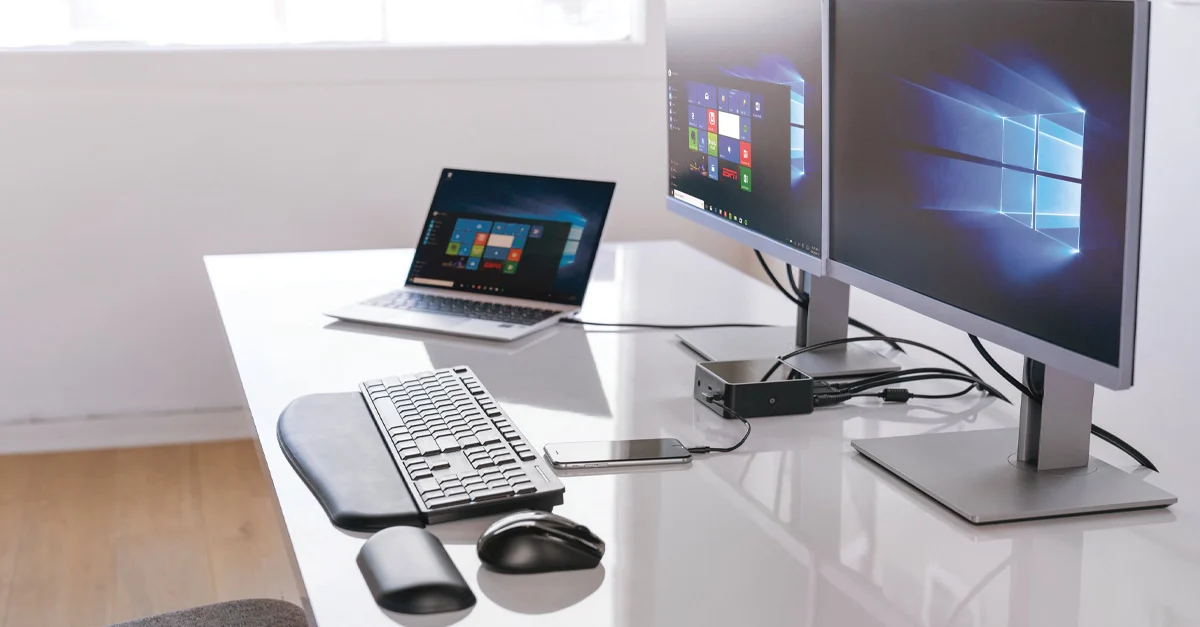
USB4 docks look like the perfect one-cable solution in 2026: plug in once and suddenly your laptop has monitors, Ethernet, fast storage, and a desk that feels clean. The headache is that “USB-C shape” still hides a lot of different capabilities. Two ports that look identical can support different modes, and two docks that claim similar speeds can behave very differently once you connect a monitor, an SSD, and a few peripherals at the same time. The result is familiar: your external drive benchmarks great one day and crawls the next, a monitor refuses to run at the refresh rate you expected, Ethernet drops when you copy files, or the dock works on one laptop but not another. The lifehack is to approach USB4 docks like a small system: you match port modes on the laptop to what the dock expects, you choose cables that actually support the needed bandwidth, you understand that monitors and storage share the same link, and you validate performance with one simple real-world test instead of trusting marketing numbers. Once you do this, USB4 becomes boring—in the best way—because you stop guessing and start building a setup that behaves predictably across devices.
Start from the laptop port: USB4 isn’t the same as Thunderbolt, and modes matter more than logos
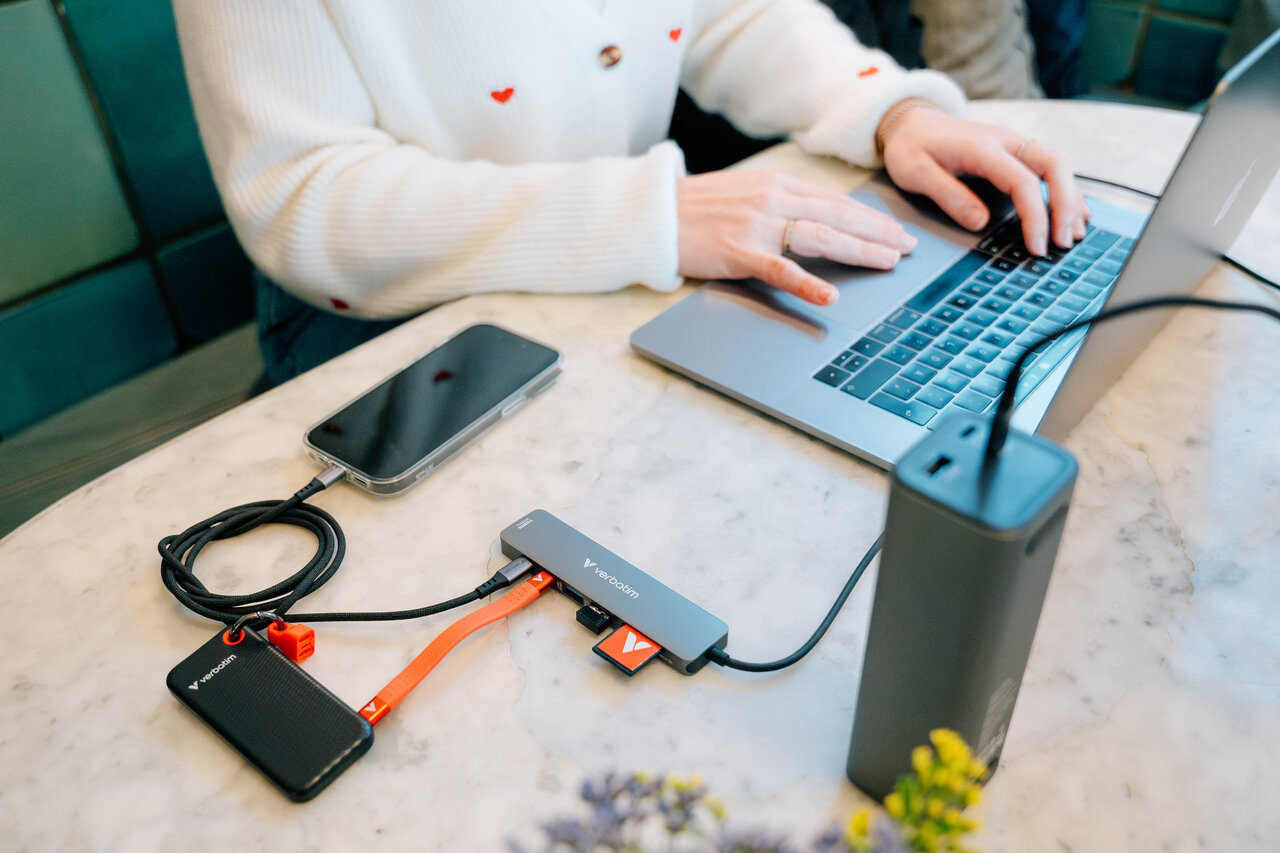
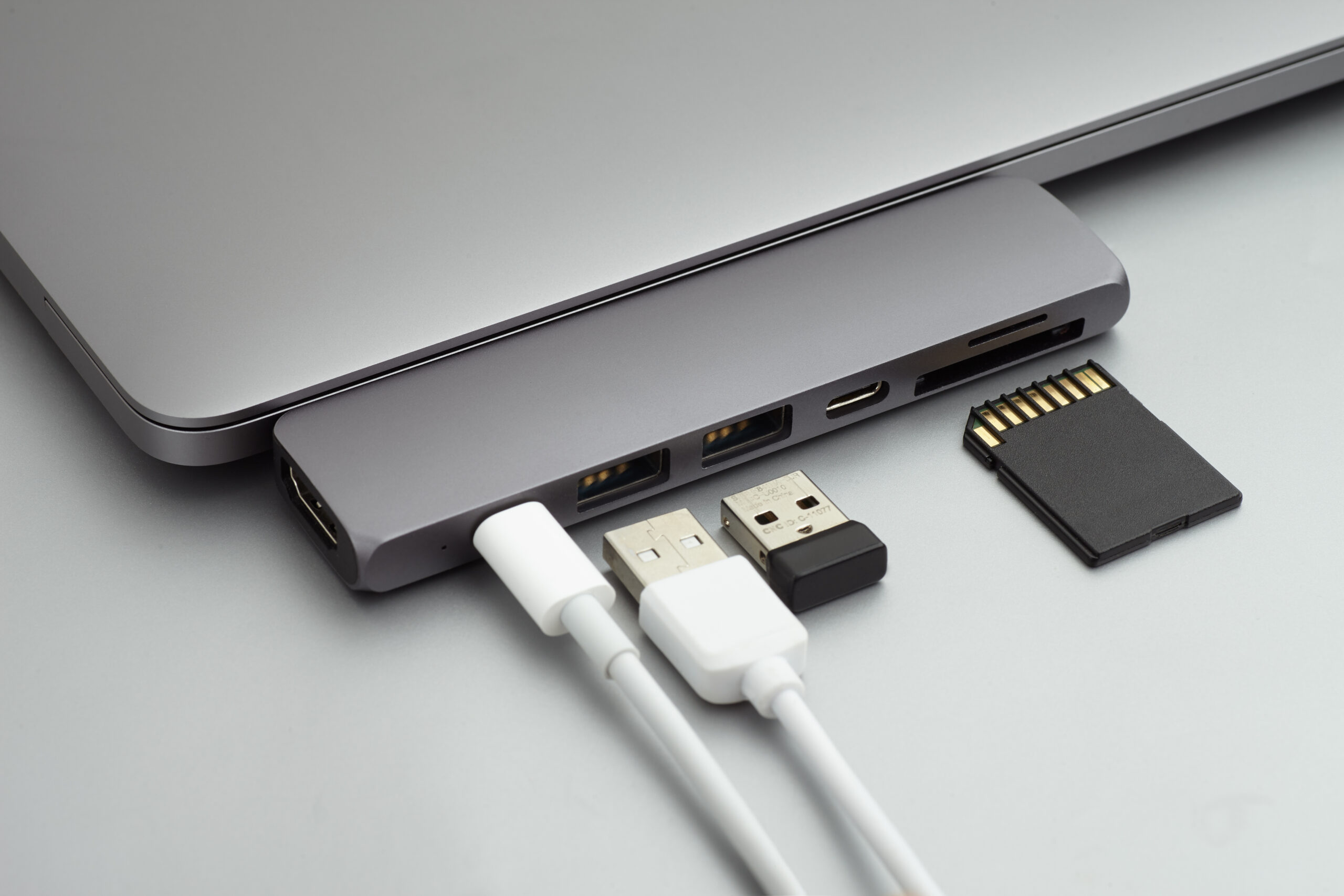
The most important compatibility fact is that the dock can only do what the laptop port can do, and the limiting factor is usually the port mode, not the dock. Many modern laptops have USB4 ports, but not every USB4 implementation supports the same features, and not every USB-C port on the same laptop is equal. Some ports carry DisplayPort Alt Mode for monitors, some support tunneling for high-speed PCIe-like storage behavior, some allow higher power input, and some are just basic USB data. If you assume “any USB-C port will work,” you’ll eventually hit a dead end where the dock half-works: storage is fine but monitors fail, or charging works but video doesn’t. The practical lifehack is to identify your “best” port before buying or blaming anything. Look for the port that’s documented as USB4 or Thunderbolt-capable and that explicitly supports DisplayPort output. If you’re using multiple monitors, you also need to know whether your laptop and OS support MST (Multi-Stream Transport) over DisplayPort, because many USB4 docks rely on MST for dual-display setups on certain platforms. If your laptop can’t do MST the way the dock expects, you may get mirrored screens or limited resolutions. That’s why a dock can be “compatible” on paper but still disappoint in real usage. The goal is to match the dock’s design to the laptop’s real capabilities, not the icon next to the port.
Real throughput comes from bandwidth sharing: monitors, SSDs, and Ethernet compete on one link
Marketing specs often quote the maximum link rate, but your actual throughput depends on what else is traveling over the same connection. A USB4 link has finite bandwidth, and video output can consume a big chunk of it—especially high resolution and high refresh rate. When you connect one or two external displays through the dock, you’re reserving bandwidth for that video stream, and what’s left is shared by storage, USB devices, and network. This is why a dock can deliver very fast SSD speeds with no monitor attached, then slow down dramatically when you add a 4K display, and then become inconsistent when you add a second display. The lifehack is to plan your “bandwidth budget” around your priorities. If you care most about fast external storage, keep the display load moderate or use a laptop port that supports higher bandwidth modes. If you care most about dual high-refresh displays, accept that external SSD speeds may drop unless the dock and laptop support more advanced tunneling and bandwidth allocation. Also note that some docks route certain ports through slower internal controllers; for example, the front USB-A ports might share a hub with other devices, while a specific USB-C port might have a more direct path. That can make two ports on the same dock perform differently even with the same drive. The practical move is to reserve the dock’s “best” port for your fastest device and use the slower ports for keyboard, mouse, webcam, and other low-bandwidth gear.
Cables are the silent bottleneck: pick the right USB-C cable for the job and label it
People blame docks when the real culprit is the cable. USB-C cables vary wildly: some are designed mainly for charging, some for basic data, some for high-speed USB, and some for full USB4/Thunderbolt-class throughput. A cable can look premium and still cap you at a lower speed if it isn’t rated for the bandwidth mode you’re trying to use. The lifehack is to stop treating cables as interchangeable and build a tiny “known-good” set. If you want USB4 dock performance, use a cable that’s explicitly rated for USB4 or Thunderbolt-class speeds and keep it short, because longer cables are more likely to fall back to lower modes or become unstable. Another practical habit is labeling: once you have one confirmed high-speed cable, label it and don’t let it drift into the random cable drawer. This matters because the symptoms of a bad cable mimic dock problems: monitors flicker, drives disconnect under load, Ethernet drops during large transfers, and performance changes depending on which cable you grabbed. Also watch for charging-only cables that come with devices; they can deliver power but not the throughput needed for a dock carrying video and storage. In 2026, the cable is part of the system, and spending a little more on a properly rated cable is often the cheapest way to eliminate “mystery” issues.
Run a practical test: verify video mode, storage speed, and stability under real load
Instead of relying on a synthetic benchmark, do a simple test that mirrors your real use. Connect the dock with your intended cable, plug in your monitor(s), connect your external SSD, and add Ethernet if you use it. Then verify video first: confirm your display is running at the resolution and refresh rate you expect. If it isn’t, that’s usually a mode or bandwidth issue, not a “bad monitor.” Next, test storage with a real file copy: copy a large folder or a single large file (several gigabytes) from internal storage to the external SSD and watch the sustained speed. Then do the same while the monitor is active and while Ethernet is in use, because contention is the real-world problem. If speed collapses only when the display is on, you’ve confirmed bandwidth sharing is the limiter. If the drive disconnects or errors under load, suspect the cable first, then the dock’s power and thermal behavior. Stability matters as much as peak speed: a dock that hits a high number for ten seconds but disconnects during a 30-minute transfer is not “fast,” it’s unreliable. Also test wake/sleep behavior: docks that drop devices after sleep are common pain points, and you want to know that before you rely on the setup daily. This one practical test gives you a clear picture of how your dock behaves with your workload, not a best-case lab scenario.
Leave a Reply